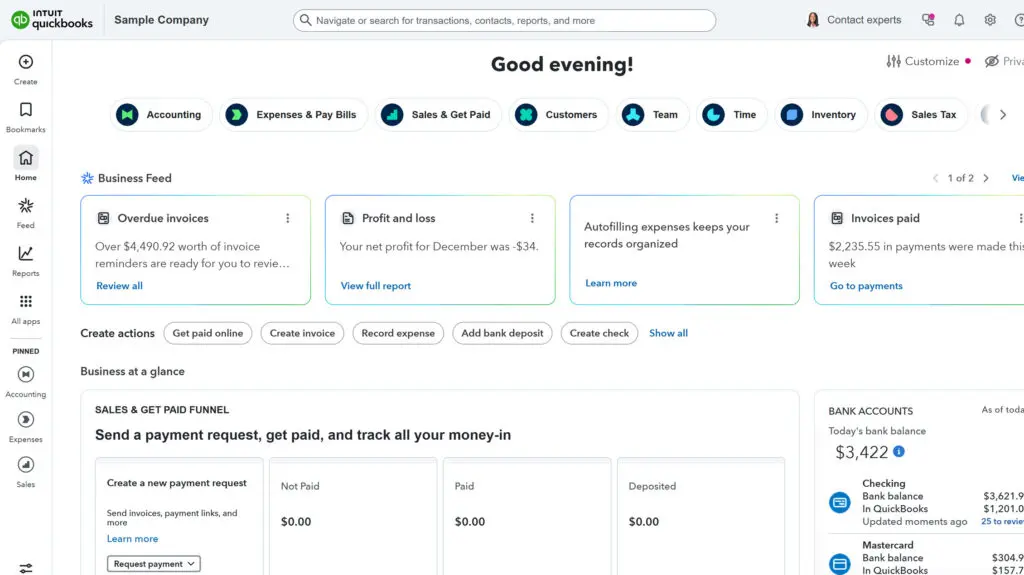
Where to Find Everything in QuickBooks Online

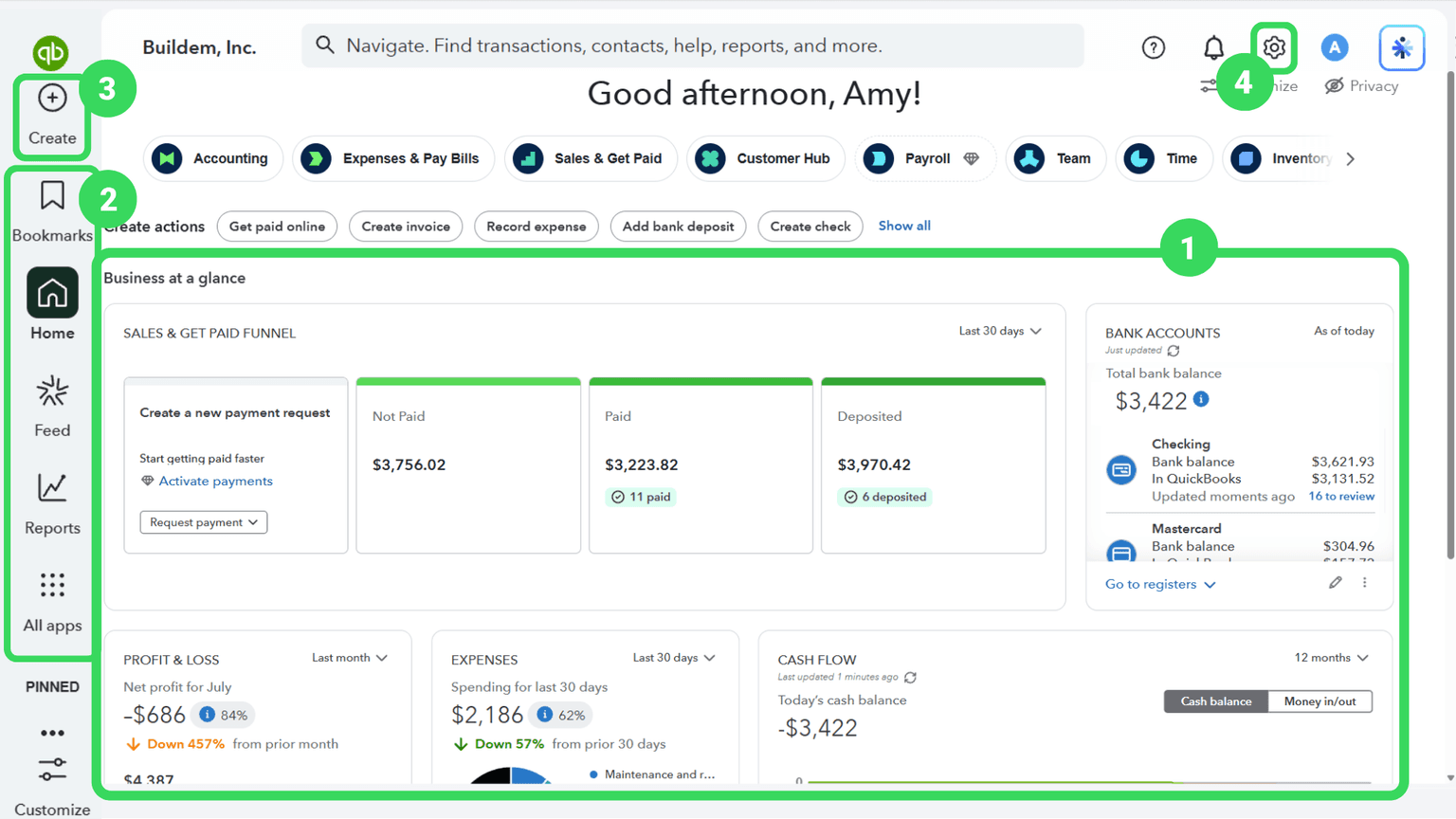
QuickBooks Online organizes almost everything into four primary menus: the Dashboard for a quick business snapshot; the left navigation bar for daily tasks; the Create button for entering new transactions; and the Gear icon holds account settings.
You start out your first session in QuickBooks Online with a plan to map out where everything lives before you need it. But before you have a chance to click through two screens, your boss calls because that vendor check has to go out today, and you don't have time to figure out how to link it to a bill. Then your customer brings in a check you need to record, even though you're not sure how to enter their invoice.
However, the map you need isn't actually as complicated as all that. Almost every task in QuickBooks Online starts from one of four places on the screen — the Dashboard, the left navigation bar, the Create button, and the Gear icon. Learn those four and the invoice, the check, and everything after it have an obvious home. This guide covers where to find each one, and how they work together.
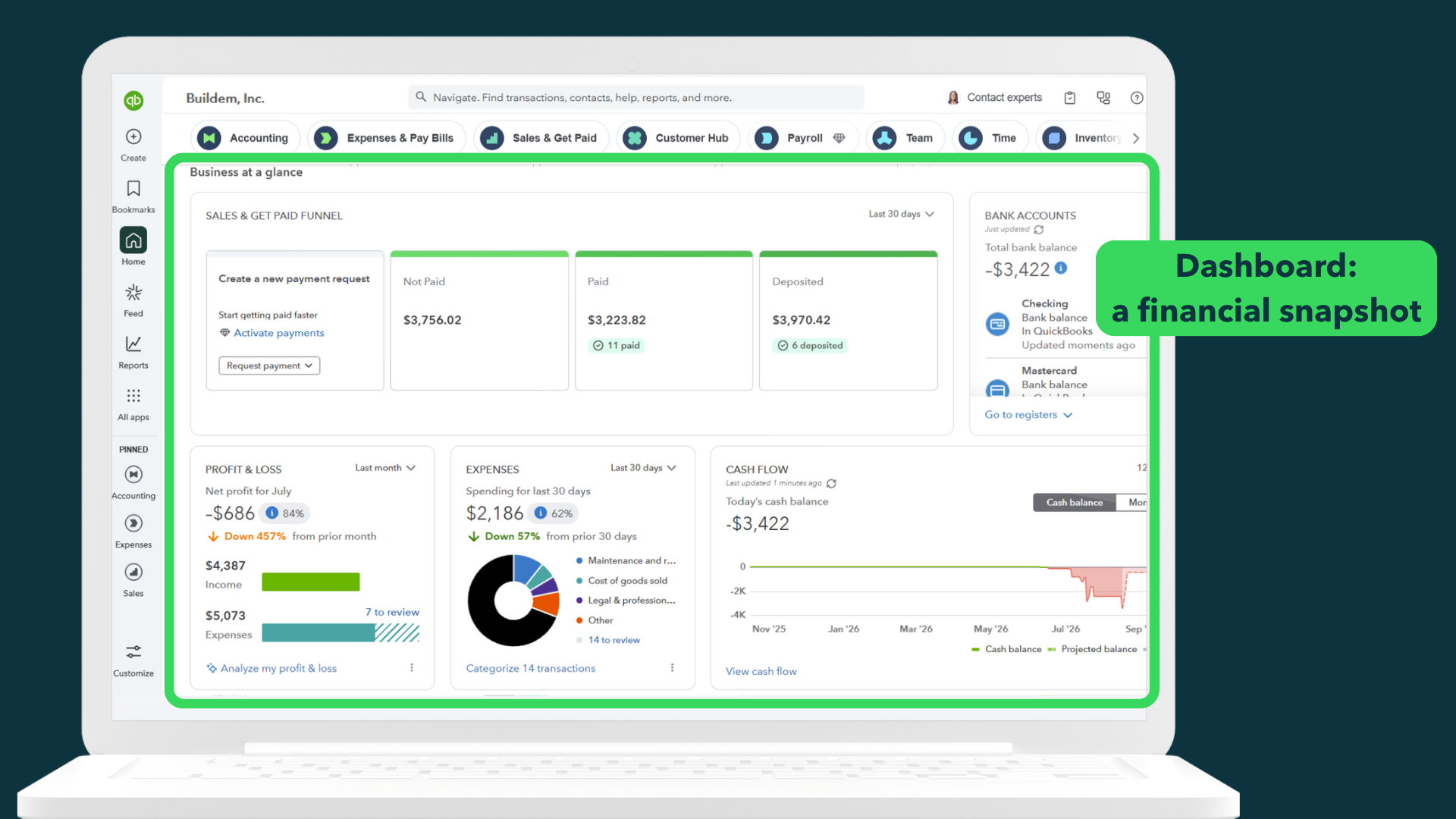
The Dashboard: Your Financial Snapshot
The Dashboard is home base. It's a snapshot of your business' finances. You can see bank balances, recent sales, overdue invoices, and profit and loss graphs. It's the first screen QuickBooks Online shows when you log in. It's built to answer "how is the business doing right now" without opening a report.
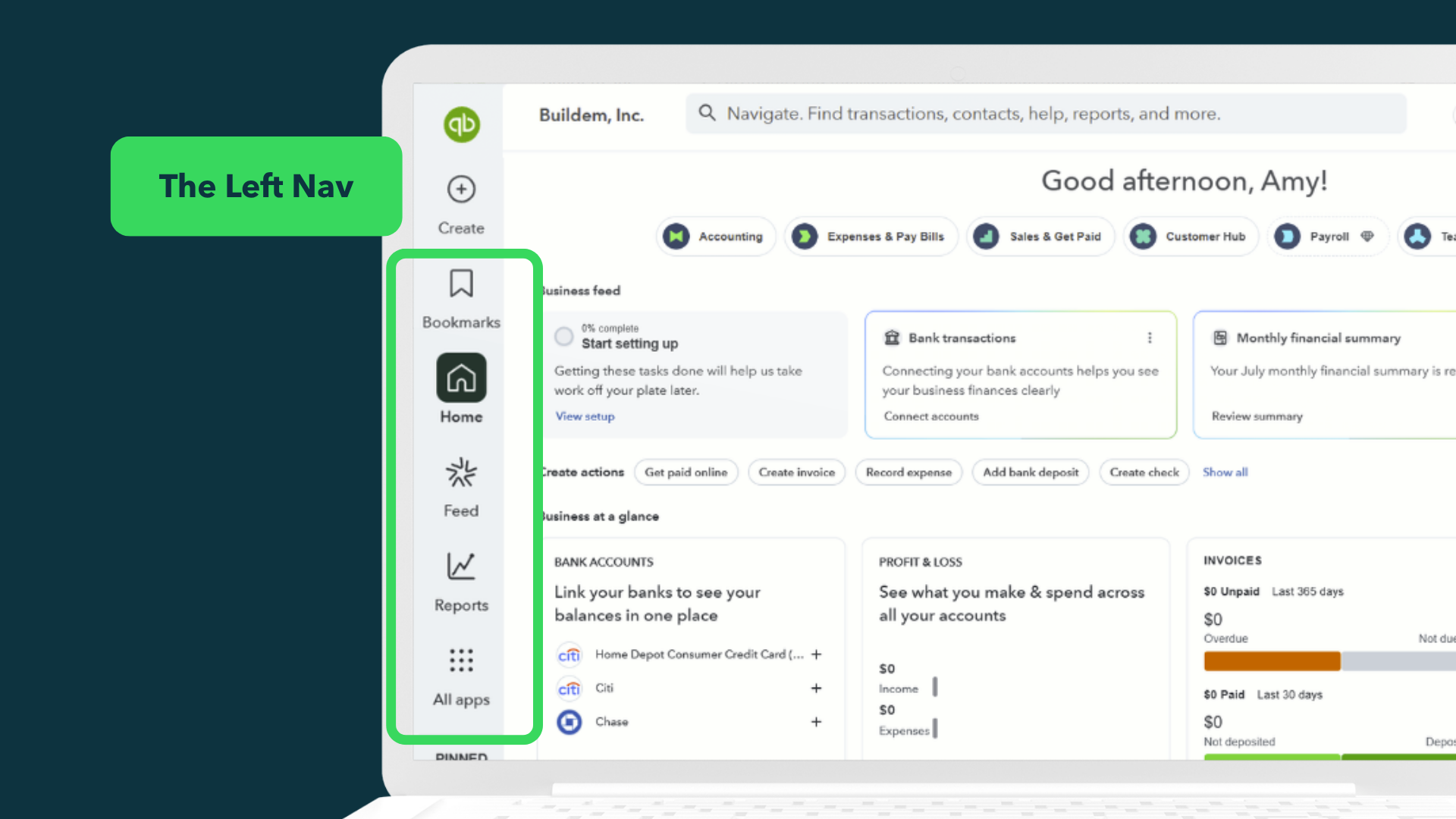
The Left Navigation Bar: Daily Tasks
The left navigation bar is where you access the financial details you've recorded about your business. It links to Bank Transactions, Expenses, Sales, Payroll, and Reports. These are the screens you use constantly to dig into how your business is doing. You can even pin the pages you use most often to access them more quickly.
The Create Button: Where Every Transaction Starts
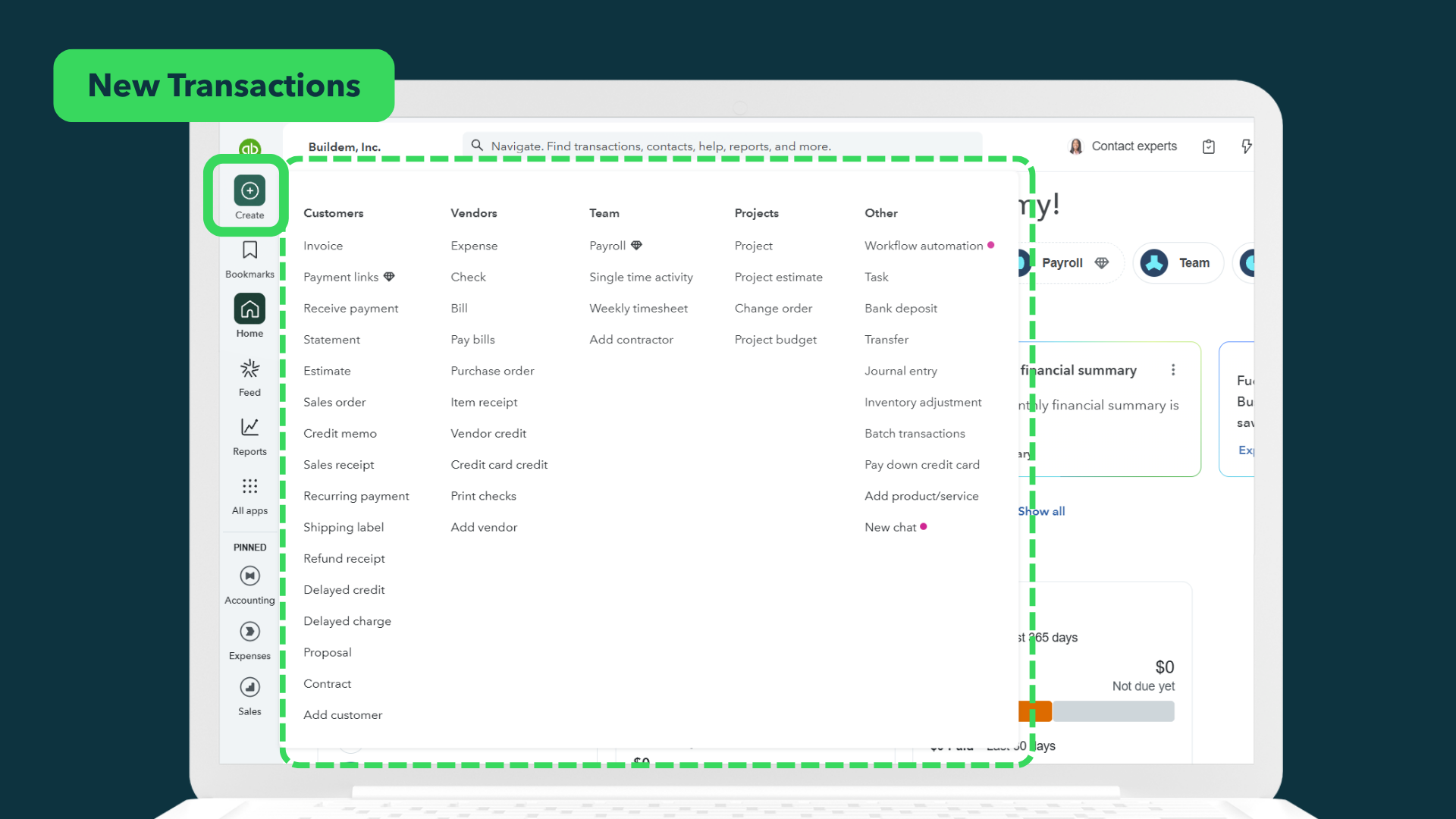
The Create button (labeled with a "+") is where every new transaction begins: a check, a bill, an invoice, a sales receipt. You may be tempted to search for the "enter a new transaction" screen in a given transaction's related window. For example, you want to enter a new invoice from the Customers list or a new paycheck from the Payroll center. Many transactions are found in those places, but not always. Instead, the Create button is where you're guaranteed to find the transaction you're looking for. When in doubt about where to start a transaction, that's where to look.
The Gear Icon: Settings and Configuration
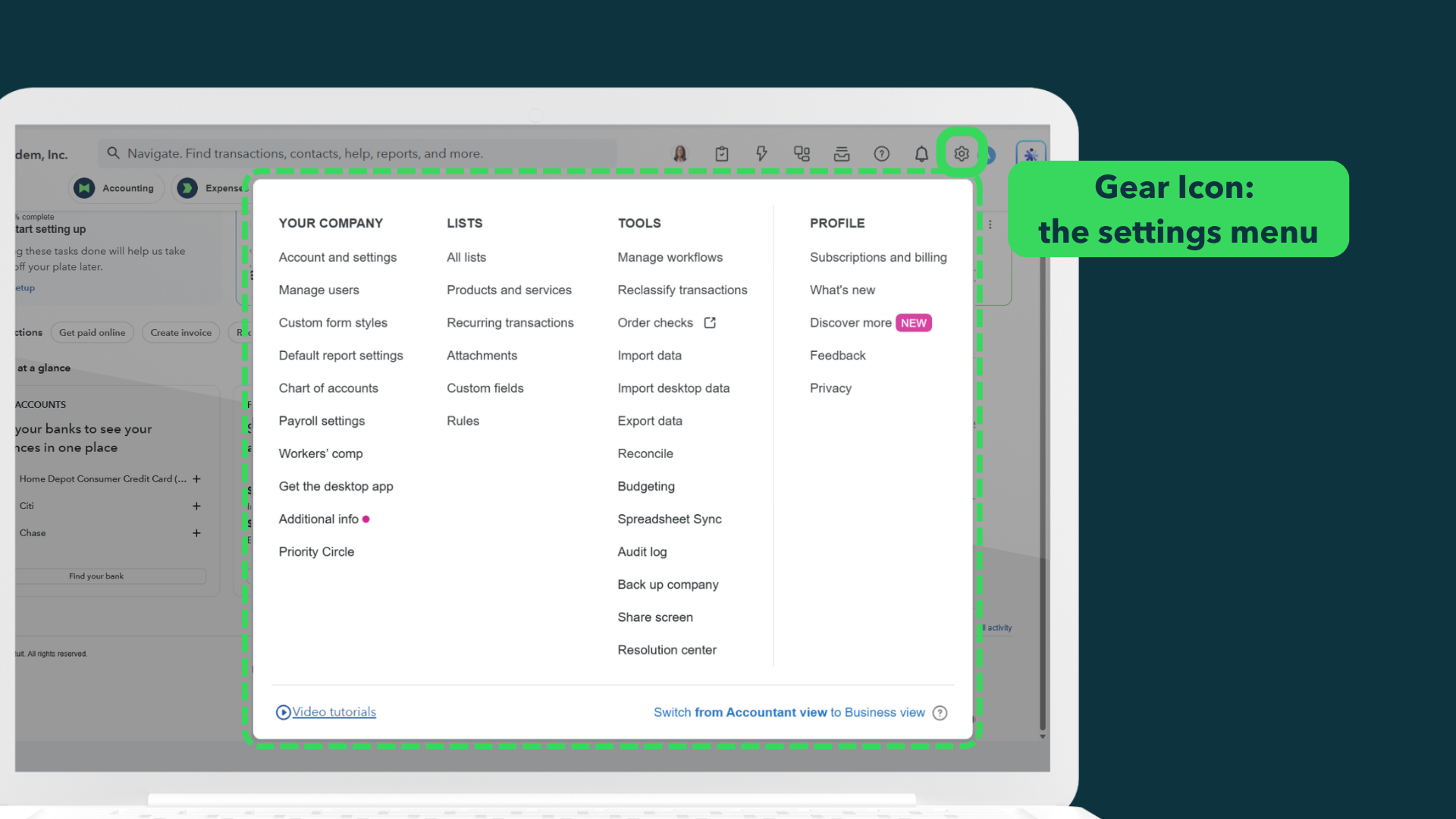
The Gear icon, in the top right corner, is the settings menu. It's used less often than the other three areas, but that's because it holds the setup work the rest of QuickBooks Online depends on: account settings, reconciliation, the audit log, and user management. It's worth getting familiar with it early so you can enter a new Products and Services item type, a new user on the account, or a change to how the business is set up.
How the Four Areas Work Together
The four areas work together in a specific order. The Dashboard provides an overview. The left navigation bar holds the daily work that overview summarizes. The Create button is the one door every new transaction walks through, regardless of which screen it belongs to. And the Gear icon holds the setup decisions the other three depend on. Once you know which of the four a task belongs to, finding it stops being a search.
You're Oriented Once You Can Do This
A new QuickBooks Online user is ready to move on to setting up lists and connecting a bank feed once:
- You know where the Dashboard, the left navigation bar, the Create button, and the Gear icon each are.
- You can find Bank Transactions, Expenses, Sales, and Reports from the left navigation bar without hunting.
- You know you can get to any new transaction from the Create menu.
- You can find company and user settings from the Gear icon.
Backed by Intuit since 1998. Every article on this blog is written by the same certified instructors who teach our live classes and self-paced courses.
The right next step
QuickBooksTraining.com's QuickBooks for Beginners course covers the full QuickBooks Online screen, the Dashboard, lists, bank feeds, and sales. And if you still don't end up where you expected to be, there's an instructor available to help you find your way.
Learn QuickBooks the right way
50+ self-paced courses, live classes every weekday, and certification prep.
Explore more training on Getting Started
Courses and videos from QuickBooksTraining.com

QuickBooks Instructor